1:1 — Profile pictures and stickers
A square keeps avatars and chat stickers centered. Move the crop to leave room for the subject across the full animation.
 GIFClear
Crop the same area on every frame, keep the animation and timing intact, and download the result — all in your browser, no upload.
GIF only · Files over 20 MB or 300 frames may take longer.
A GIF cropper keeps a rectangular part of an animated image and removes everything outside it. Use it to focus on a subject, cut away a screen recording's borders, or remove black bars without shrinking the subject itself.
Cropping changes which part of the picture remains. Resizing scales the whole image to new dimensions. This tool crops the same area across all frames and keeps the animation, transparency, frame timing, and loop setting.
Choose a GIF from your device, drag it into the upload area, or fetch a direct GIF URL. Processing happens locally in your browser.
Draw a rectangle on the first frame, move it or pull a corner, then choose an aspect ratio or enter exact pixels. The same area is kept on every frame.
Watch the animated preview, select Crop GIF, and check the final dimensions and file size. Download your GIF with its animation, timing, and loop setting kept.
A square crop focuses on the mascot while keeping the movement. The preview below shows a 180 × 180px area from a 240 × 180px GIF; cropping removes the side edges without scaling the artwork.
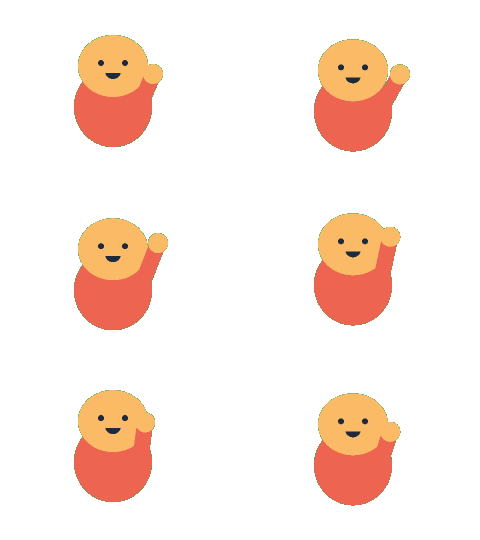
A square keeps avatars and chat stickers centered. Move the crop to leave room for the subject across the full animation.
Use a portrait crop when a square cuts off too much vertical detail. Check your destination's current format requirements.
A tall crop suits phone screens and mobile wallpaper layouts. Whether a wallpaper animates depends on the device and app.
A wide crop frames a scene for a video cover or thumbnail. Some destinations display only a still image.
Draw any rectangle to remove black bars or screen recording borders. Type exact width and height when you know the area you want to keep.
The cropper changes which area you keep; the GIF Resizer changes how large the image is.
Crop when you want to remove an edge or focus on a detail. Resize when you want the entire scene at smaller or larger dimensions. You can crop first, download the result, then resize it if needed.
Cropping reduces the canvas and can reduce file size, but it does not reduce the number of frames. File size also depends on colors, movement, and how the source was optimized, so a cropped result is not guaranteed to be smaller.
If you need a smaller file, use the GIF Compressor after cropping. If the subject moves outside your rectangle, make the selection larger; this tool uses one fixed area throughout the animation.
Choose your GIF, drag a rectangle over the first frame, and adjust the area with the corner handles or pixel inputs. Preview the animation, select Crop GIF, then download the cropped result.
Yes. The rectangle you choose on the first frame is applied to every frame at the same coordinates, so you only make one selection.
Yes. The output stays an animated GIF with the original frame order and timing, and no watermark is added.
Select the 1:1 preset, then move the square over the subject and adjust its corners. Preview the full animation before downloading so the subject stays inside the square throughout.
Cropping reduces the canvas area and can reduce file size, but the result depends on the animation and how the original was optimized. It does not remove frames, and the final file can sometimes be larger; check the actual size after cropping.
No. Cropping preserves every frame's original delay and the source loop setting, including finite loops and GIFs that play once.
Yes. Open this page in a current mobile browser, tap Choose GIF, and adjust the selection with your finger or the pixel inputs. Large animations may take longer or need more memory than your phone has available.
No. Cropping runs locally in your browser and your GIF is not uploaded to a server. If you use the URL input, your browser fetches the source GIF directly from its host before processing it locally.